October 22, 2012 telerik

Windows 8 and Visual Studio 2012 and Data Visualization, Oh My!

Windows 8 and Visual Studio 2012 and Data Visualization, Oh My!

This month is a big one for Microsoft developers. Windows 8 will be generally available in stores on a variety of form factors starting on 10/26, with the BUILD conference following closely in the last week of October. This on top of the Visual Studio 2012 RTM earlier this summer and a Windows Phone 8 release coming soon, and there’s a lot going on if you’re a Windows developer.

If you’ve read my previous editor’s notes this year, you already know that Telerik takes Windows 8 and Visual Studio 2012 very seriously. As of 10/17, we’ve officially released our set of XAML and HTML controls for building Windows Store apps on Windows 8, including data visualization controls like charts, gauges and bullet graphs. These controls aren’t just ports from old platforms, but controls that have been re-imagined for the touch-centric mobile devices that Windows 8 will be shipping on. In addition, we’ve updated JustCode to support Windows Store project types, JustDecompile to decompile Windows Store and C# 5.0 apps and our JustTrace profiler to target Windows Store apps. If you’d like to see what our amazing customers have already done with all of this great Windows Store support, check out our Showcase Gallery.

Further, as the modern UI style becomes more popular, we’re continuing to push touch and metro UI themes into almost all of our suites, including ASP.NET AJAX, WPF and Silverlight. Also, these platforms including WinForms get a huge new control this Q: the PivotGrid, providing you with cutting edge data visualization for your custom apps.

In this Q, we’ve focused on Windows Store apps, Visual Studio 2012 and data visualization for desktop, web and mobile app development across the board, but that’s not all! We’ve added Coded UI support to WinForms and WPF controls, full SharePoint compliance to our ASP.NET AJAX controls and complete storage of all of your Visual Studio settings in the cloud to JustCode! Check out our webinars the week of 10/22 so you can see just exactly what’s new in your favorite Telerik products.

Chris Sells
VP, Developer Tools
@csells

P.S. And while the Developer Tools division has been hard at work, so has the rest of Telerik. For example, we’ve recently welcomed Eric Lawrence into our family with his excellent Fiddler tool, and the folks in our agile project management division TeamPulse have introduced Kanban boards and integration with TFS 2012 in their latest version.

October 8, 2012 telerik

Telerik’s evolving platform guidance for .NET developers

Telerik’s evolving platform guidance for .NET developers

Telerik often gets questions from its customers about which of the multitude of app frameworks that Microsoft provides for .NET developers that they should pick. WinForms? WPF? Silverlight? ASP.NET? What’s the right solution for their problem? The answer is always the same: it depends.

Unfortunately, that’s not very helpful, so last year a set of the best and brightest that Telerik has to offer sat down and figured out just what it depends on and whether we could offer clear, concise guidance for our customers. The answer was yes we could,” so we did that in 2011.

However, it’s been a busy year that’s included two major events in the life of a .NET developer: Silverlight desktop and web have been shelved and Windows 8 has been born. So, with that in mind, we’ve updated the platform guidance to take those two important changes to the .NET developer landscape into account; you can read all about it in the Telerik’s 2012 platform guidance for .NET developers.

Or, if you’re already familiar with the 2011 guidance, the rest of this post will be about what’s changed in 2012.

Desktop Application

Desktop applications represent the range of applications from those supporting internal information workers to those delighting consumers. These applications typically involve richly interactive interfaces, either for heavy-duty data management or entertainment. They key characteristic of desktop apps is the need to take advantage of the full range of native capabilities of the platform.

Ideal .NET Platform: WPF

WPF provides the ideal platform for building desktop apps. With mature, rich tooling provided in Visual Studio and Expression Blend, readily available components that address the full range of app styles, a large developer community and ClickOnce deployment, WPF gives the .NET developer all of the power of building native” Windows software with a simple deployment model.

Key Advantages of WPF:

  • Mature platform with 1st class support for rich media and data visualization
  • Excellent tooling and active developer community
  • Rich, deep access to the native Windows platform
  • Simple deployment and updates with ClickOnce
  • Good availability of complete 3rd party toolsets

[Special Silverlight Guidance Note: Silverlight is also a good candidate for building desktop apps, sharing many of the same characteristics of WPF. While it seems clear that Microsoft will not release a major version beyond the recently released Silverlight 5, their commitment to 10 more years of support as well as continued 3rd party vendor support means that it’s a viable alternative for WPF development for new or existing Silverlight projects.]

Tablet Application

The use of tablets and touch-centric apps within companies is on the rise, and tablet sales are expected to double in 2012 (Gartner). Unlike their mobile smartphone counterparts, which frequently complement existing desktop apps, analysts see the potential for tablets to be more disruptive, replacing certain types of desktop apps in the enterprise. For .NET developers, it is important to address this trend and pick a Microsoft platform that will deliver the best tablet experience. Many platforms available from Microsoft can be used to build touch-enabled apps, even WinForms, but Microsoft is providing clear guidance for modern, touch-first apps with the arrival of Windows 8.

Microsoft’s Windows 8 introduces a new model for building touch-enabled, tablet friendly apps that are meant to be content-focused, easy to use with no documentation, touch-centric and tailored to the device. These apps will run in a new dedicated environment only available in Windows 8.

Since Microsoft is making it clear that Windows 8 is their ideal platform for tablet apps, the bigger question developers must answer is how to develop tablet apps. Tablet apps can be built with either XAML/.NET or HTML/JavaScript. Both approaches have access to the full capabilities of the device and share a common Windows Runtime API.

Ideal Tablet Platform: XAML and .NET

When building Windows 8 tablet apps, choosing between XAML/.NET and HTML/JS largely depends on the kinds of existing assets within an organization and the skills of the developers, but we recommend XAML and .NET for most tablet app development. Tablet apps built with XAML and .NET not only offer the familiar .NET programming paradigms (and tools) that have been popularized over years of .NET and XAML development, but a large amount of the code, assets and skills carry over to Windows Phone 8 (WP8) app development. In contrast, it is not possible to leverage HTML/JS assets if you’re also building apps for WP8.

If supporting WP8 is not a key consideration for your tablet development, then it is important to know that Microsoft has worked to ensure the capabilities, tooling and run-time performance for both XAML and HTML tablet apps is as close to identical as possible. At that point, your choice between the two options is about the past and future technology strategy of your organization, not the capabilities of the platform.

So while we primarily recommend XAML and .NET for tablet app development, here are key advantages to both approaches that should be considered:

Key Advantages of XAML for building Metro-style apps:

  • Based on the same core tools, assets and techniques of WPF and Silverlight.
  • Comprehensive access to the underlying Windows Runtime (WinRT).
  • Extensible with native C++ components for performance-intensive activities or complete access to the underlying WinRT.
  • The same XAML tooling and techniques are available to native C++ programmers, if you feel the need to write your complete XAML-based tablet app in native code.
  • App code, assets and skills reusable between Windows 8 and Windows Phone 8

Key Advantages of HTML for building Metro-style apps:

  • Based on the same core HTML, JavaScript and CSS engines that power IE10.
  • Built to support 3rd party libraries, e.g. jQuery, as much as possible (although the sandbox security model can introduce challenges for certain libraries).
  • Comprehensive access to the underlying Windows Runtime (WinRT).
  • Extensible with native C++ components for performance-intensive activities or complete access to the underlying WinRT.
  • Lower learning curve for developers more familiar and comfortable with HTML, JavaScript, and CSS than XAML.

[Game support note: Both Windows Phone and Windows 8 provide access to DirectX for building high-performance twitch” games. This access is provided via .NET XNA in Windows Phone 7 and via native DirectX in Windows 8. If you are planning on building high-performance games for these Microsoft platforms, we suggest this third option .]

Where are we?

It’s clear that Silverlight is in no sense dead.” At Telerik, we still sell a large number of licenses to Silverlight developers, although from an engineering point-of-view, we spend more time making sure we’re taking the best advantage we can of WPF. Also, even if we don’t recommend starting new desktop or web deployment projects in Silverlight, it’s still alive and well on Windows Phone 7 & 8 and it provides an excellent springboard into XAML development on Windows 8. If you think of Silverlight as one of Microsoft’s implementations of XAML, along with WPF and the Windows 8 support, you’ll have the right mindset to move your Silverlight web and desktop apps, developers, skills and assets forward to WPF on the desktop, Silverlight on the phone and XAML on Windows 8.

August 16, 2012 win8 telerik

Telerik Loves Windows 8 and Visual Studio 2012 RTMs!

Telerik Loves Windows 8 and Visual Studio 2012 RTMs!

win8vs2012Yesterday’s release of Visual Studio 2012 and Blend for Visual Studio 2012 marks the beginning of a new era. In some ways, VS2012 and Blend are incremental releases, adding even better support for building enterprise and consumer apps and services for the desktop and the web. However, in one very important way, the release of VS2012 and Blend, together with the release of Windows 8 earlier this month, signals a whole new focus for the platform — that of touch-centric tablets — and with it, a whole new way to package and distribute apps for the Windows operating system — the Windows Store.

If Windows 8 sells even half of what Windows 7 has sold (which seems low, considering the support for a great number of new form factors), then that will represent 300 million customers all looking for new Windows 8 apps in the Store. Currently, that Store holds about 500 apps and even if Microsoft increases that number to 5,000 by general availability in October, that’s far short of the 500,000 apps that similar app stores have. In short, Windows 8 is going to have lots of users and those users are going to want to buy lots of apps. This is, of course, why Visual Studio 2012 and Blend are so important — they’re the tools you can use to design, develop and package your app for the Store and tap into those hundreds of millions of customers. Make no mistake — Windows 8 represents nothing short of a reboot of the Windows developer ecosystem and Visual Studio 2012 and Blend are the keys to that ecosystem.

Windows 8, Visual Studio 2012 and Blend are important to Windows developers, which makes it important to Telerik customers. Because of that, we’ve been on the cutting edge here since the BUILD conference in September, releasing metro themes that first week and supporting the Beta and RCs in our tools and controls. And now I’m happy to announce that we fully support Windows 8, Visual Studio 2012 and Blend across nearly all of our Windows developer products. And not only do we support them, but we take special advantage of their unique features in our products, as you can read in the following posts:

Of course, this is just the beginning of the tablet and mobile era for Windows developers, so count on Telerik to continue to push into Windows 8 and Windows Phone 8 for building touch-centric apps for both the Windows Store and the Windows Phone Store, as well as continuing to push our products to meet your needs on the desktop and on the web. Telerik’s been right there through the last decade of Windows development and you can expect us to be there for the next decade.

Chris Sells
VP, Developer Tools
@csells

June 7, 2012 conference telerik

June, 2012, Florida: Best TechEd Ever!

This month in Florida is going to be my 2nd TechEd ever and I’m sure the best by far. The number of things I get to do is staggering:

  • I get to work the Telerik booth for my first big show. We’ll be launching not one but two completely new Telerik products. Fun!
  • Since the Telerik Ultimate Collection has been nominated for the Best of TechEd, I get to give a dead-run 15-minute demo to the judges with fellow Teleriker Michael Crump.
  • Also with Michael, I’ll be giving the 30-minute Telerik + Blend: Better Together” talk in the Microsoft Visual Studio booth showing off how 3rd party controls work inside the newest Blend for building Metro style apps on Windows 8.
  • The first chapter of the Metro/JS book I’m writing with another fellow Teleriker Brandon Statrom is being printed and bound in a limited quantity for the show. Stop by and get your signed copy!
  • I get to be one of the Speaker Idol judges every day at lunch.
  • I’m sure there’s at least one podcast recording in there, too, somewhere…

I honestly can’t remember when I’ve looked forward to a conference more. I’ll see you there!

April 9, 2012

Microsoft + ASP.NET + Open Source: This Time for Sure!

Microsoft + ASP.NET + Open Source: This Time for Sure!

rocky-and-bullwinkleBullwinkle: Hey Rocky! Watch me pull a rabbit out of a hat!”

Rocky: Again? That trick never works!”

Bullwinkle: This time for sure!”

In the last week or so, I’ve heard mixed reactions to Scott Hanselman’s eye-popping announcement that, in addition to ASP.NET MVC that is already open source, that Microsoft is releasing ASP.NET Web API and Razor as open source as well. Further, and this is the big deal:

Microsoft is going to take contributions on their open source ASP.NET components and ship those contributions in the box for future major releases.

Of course, this is big news on the face of it, but some folks aren’t convinced. Some more jaded members of the community look at the open sourcing of a Microsoft component as the beginning of the end for that component. Look at IronPython!” they say. That project was open sourced right before the team imploded.”

Another jaded point of voice is that Microsoft is open sourcing MVC so that they have a story when it’s killed: You can add features to it all you want,” they claim Microsoft will say.

The funny thing about all of those points of view is that I hear people complain all the time when Microsoft cancels something, I don’t care if they cancel my favorite project; just release the source to the community!” I find it ironic that when Microsoft does release the source for a dying project, people complain about that, too.

However, in this case, I don’t think that ASP.NET is going to be side-lined. In the previous cases, it was easy to see that Microsoft was moving on and to what, e.g. the C# dynamic keyword in the case of IronPython.

ASP.NET, on the other hand, is a huge part of the server-side story for Microsoft and MVC is clearly the thing they’re focusing on. It’s the common thread for custom servers for both UI and API on both Windows Server and the Cloud and a big focus in the tooling for VS11.

Further, Scott has a track record with making OSS work from Microsoft, including NuGet and the user contributions that it takes.

And finally, both Scott Hanselman and Phil Haack, respected, active community members, not only drove these projects but have endorsed them.

Those three things add up to Microsoft pulling the rabbit out of the hat for me.

March 20, 2012 books

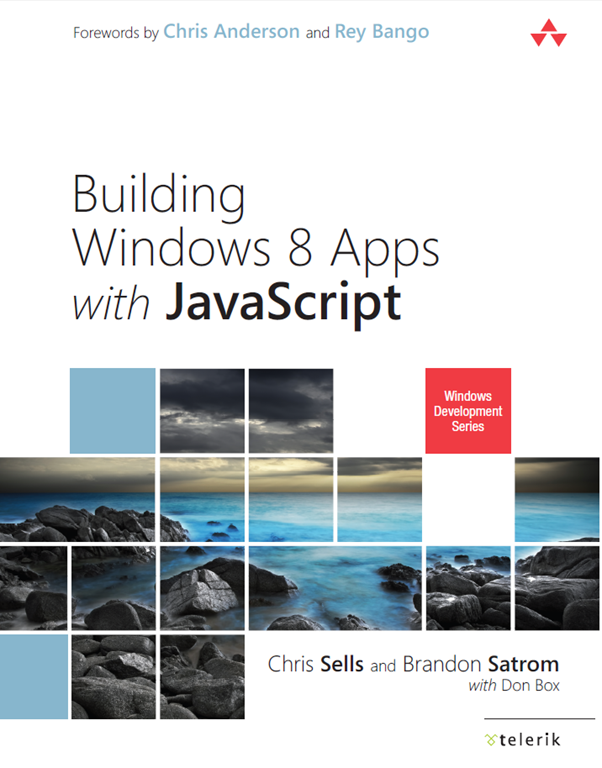
Building Windows 8 Apps with JavaScript

Building Windows 8 Apps with JavaScript

Brandon Satrom and I are writing a book on Metro/JS apps for Win8, with Don Box. All of the content on this page is subject to change.

winjs book cover

Read Online

Purchase

Table of Contents

  • Foreword: Chris Anderson
  • Foreword: Rey Bango
  • Preface
  • Chapter 1. Hello, Windows 8
  • Chapter 2. Binding and Controls
  • Chapter 3. Layout
  • Chapter 4. Typography
  • Chapter 5. Media
  • Chapter 6. Drawing and Animation
  • Chapter 7. App State
  • Chapter 8. Networking
  • Chapter 9. Shell Contracts
  • Chapter 10. Shell Integration
  • Chapter 11. Device Interaction
  • Chapter 12. Extending With C++
  • Chapter 13. Making Money
  • Appendix A: JavaScript for C-family Programmers
  • Appendix B: Styling & Presentation at a Glance

Samples

Most of the chapters have several source code samples that accompany them, which you can download and use how you see fit. Enjoy!

March 12, 2012 telerik win8

WinJS Promises: then and done

WinJS Promises: then and done

As of the Windows Consumer Preview (aka Win8 Beta), the WinJS promises object has a done” method as well as a then” method. The done” method is just like then” except that it turns unhandled errors into exceptions. If you read no further, know this:

Always call done” as the last promise method in your promise chain.

Let’s say you have a promise implementation that makes failure a strong possibility:

  1. var prom = new WinJS.Promise(function (c, e, p) { e(#fail”); });

A fastidious developer will always pass in an error handler whenever then call the then” method of a promise:

  1. prom.then(…, function (m) { content.innerText = Handled: + m; });

However, in the case that the developer doesn’t pass in a error handler function when calling then”, the error will silently drop on the floor:

  1. prom.then(); // error? what error?

I realize that the web was built around the idea that page errors should just silently whistle into the wind, but as an app developer:

Errors should be loud.

So, I want my errors to be loud, I should default to using the done” method on a promise instead:

  1. prom.done(); // error == BOOM!

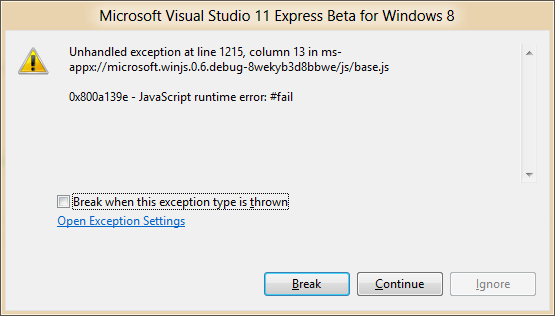
When I call the done” method and an unhandled error is detected, WinJS throws an error that not even a try-catch handler will stop from showing in the developer’s face:

image

Personally, I’d prefer to be able to catch such errors in try-catch blocks, but this behavior is far preferable to the error being ignored. Of course, if I care that much, I can provide an error handler function when calling done:

  1. prom.done(…, function (m) { content.innerText = Handled: + m; });

And finally, if I want to chain my promises, I just need to put the then” methods in between so the errors flow, but the done” method should always be last:

  1. var app = WinJS.Application;
  2. app.onactivated = function (eventObject) {
  3.   // start the download
  4.   downloadStatus.innerText = downloading posts…”;
  5.  
  6.   // process the declarative controls
  7.   WinJS.UI.processAll()
  8.   .then(function () {
  9.     // use the WinRT to download the RSS
  10.     var syn = new Windows.Web.Syndication.SyndicationClient();
  11.     var url = new Windows.Foundation.Uri(http://blogs.msdn.com/b/oldnewthing/rss.aspx”);
  12.     return syn.retrieveFeedAsync(url);
  13.   })
  14.   .done(processPosts, downloadError);
  15. };

This is actual code from an app that pulls down an RSS feed after the processAll method is completed in the then” method on line 8, which returns another promise on line 12. That promise is handled by the done” method on line 14. If there had been an error in the download and as a developer, I’d forgotten to provide the downloadError” error handler, I’d have gotten a giant exception dialog that would’ve encouraged me down a different path.

Thanks to Josh Williams from the WinJS team for reminding me of the done” method.

February 29, 2012 tools win8 telerik

What’s New in the Beta Metro/JS Templates for VS11

What’s New in the Beta Metro/JS Templates for VS11

The Consumer Preview of Windows 8 (aka the Win8 beta) is now available for download, along with the matching Visual Studio 11 beta. You can download them both from the Developer Center for Metro style Apps and at least when I did the downloading this morning, it was smooth and worked well. In case you’re interested, I downloaded the ISO, not the setup, and I am currently writing this blog entry in Windows Live Writer running inside a WMWare Workstation 8.0 virtual machine running on the Windows 7 host OS running inside Boot Camp on my MacBook Pro. As someone said to me this morning: That’s a lot of VMs!” Maybe so, but the Win8 and VS11 betas are running surprisingly well inside of my Inception-box.

Metro/JS Templates for VS11 in BUILD

If you played around with the Metro/JS templates in VS11 from the BUILD conference in September, you’ll have noticed that the generated apps were compliant with the Windows 8 UX style guidelines, but that two of the templates — Grip and Split — generated large amounts of code. That’s because these are pretty much the biggest apps that Microsoft has ever shipped as templates. They each have multiples pages and they work hard at being simple but feature complete Metro style apps.

However, as well as the BUILD templates implemented the Win8 UX, their code wasn’t the greatest, for the following reasons:

  • The templates were attempting to codify best practices for a brand-new app model. That’s always going to take time to get right.
  • There was only so much time to get it right before BUILD — it was either have great code or implement a great UX, so the template team chose the latter.
  • The bonehead PM in charge at the time (me) decided it was a better choice to push the data model into each page instead of centralizing it. That was a bad idea.
  • The data model, spread as it was across nearly every JS file in the templates, was assumed to be static. However, the vast majority of apps get their data dynamically from some external source and the template-generated code made that very hard to implement.
  • There were a number of features that the templates needed that didn’t exist directly in the platform, either in WinJS, the IE DOM or in the WinRT libraries, so the templates needed to provide those features.

All of these reasons meant that the functionality of the generate Grid and Split apps made for an instructional start to building your own Metro style apps, assuming you were willing to wade through a great deal of code. The new templates in the Win8 beta solve nearly all of these problems.

Get-VS-11-BetaMetro/JS Templates for VS11 Beta

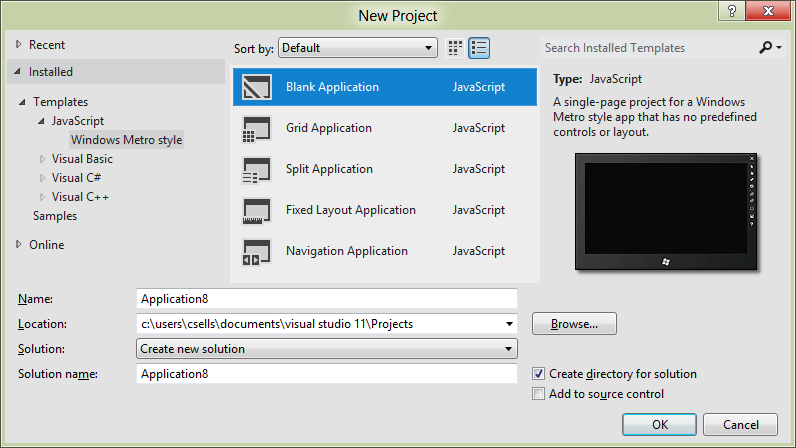
Out of the box, the Metro/JS templates in the VS11 beta (made available today, Feb 29, 2012), get more betterer as they get more complex.Let’s start simple and work our way up.
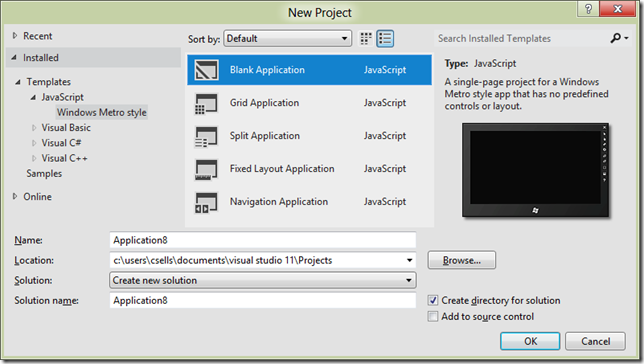
image

Blank Application

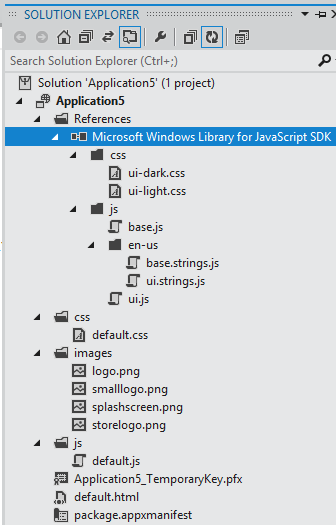
The Blank Application template is almost the smallest Metro/JS app you can build, except that it includes a reference to the Microsoft Windows Library for JavaScript (aka WinJS):
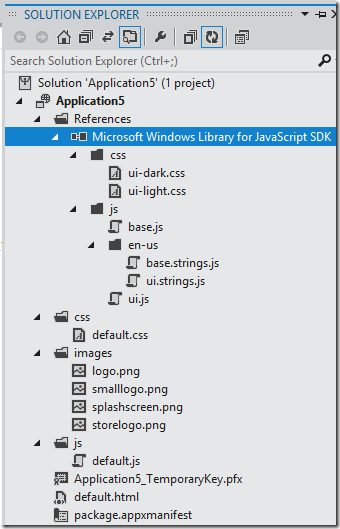
image

And to be clear, this is a brand new feature. Including WinJS as a reference instead of dropping the code into each project means that MS can shipped a single shared implementation instead of every app in the store duplicating the code. If you want to duplicate the code into your project, you can do so, but you’ll also have to update the URL references to the JS and CSS files from your HTML files, like this snippet from the generated default.html:

default.html
  1. <!– WinJS references –>
  2. <link href=“//Microsoft.WinJS.0.6/css/ui-dark.css” rel=“stylesheet”>
  3. <script src=“//Microsoft.WinJS.0.6/js/base.js”></script>
  4. <script src=“//Microsoft.WinJS.0.6/js/ui.js”></script>

In addition to the new syntax with the leading double-slashes, that the number of WinJS files to include is a far smaller number in the Beta. Now it’s just base.js and ui.js, which makes it easy to decide which one(s) you want and in what order to include them, fixing a common problem in the BUILD bits.

One other thing that’s new in the Blank Application template is that there are stubs for implementing tomb-stoning to easily save and restore your app’s session state in the default.js:

default.js
  1. var app = WinJS.Application;
  2.  
  3. app.onactivated = function (eventObject) {
  4.     if (eventObject.detail.kind === Windows.ApplicationModel.Activation.ActivationKind.launch) {
  5.         if (eventObject.detail.previousExecutionState !== Windows.ApplicationModel.Activation.ApplicationExecutionState.terminated) {
  6.             // TODO: This application has been newly launched. Initialize
  7.             // your application here.
  8.         } else {
  9.             // TODO: This application has been reactivated from suspension.
  10.             // Restore application state here.
  11.         }
  12.         WinJS.UI.processAll();
  13.     }
  14. };
  15.  
  16. app.oncheckpoint = function (eventObject) {
  17.     // TODO: This application is about to be suspended. Save any state
  18.     // that needs to persist across suspensions here. You might use the
  19.     // WinJS.Application.sessionState object, which is automatically
  20.     // saved and restored across suspension. If you need to complete an
  21.     // asynchronous operation before your application is suspended, call
  22.     // eventObject.setPromise().
  23. };

The handling of the terminated state in the onactivated event on line 3 and the checkpoint event handler on like 16 are for reactivating and saving your app state respectively.

And finally, the handy TODO comments are something you’ll find sprinkled throughout the templates based on usability feedback conducted to determine what developers really need help with as they add their own functionality to the app.

Fixed Layout Application

Moving up the complexity scale, the Fixed Layout Application template is meant to do just what it says — provide a jumping off point for apps that are logically fixed layout. The crux of this code is the use of the ViewBox control in the default.html:

default.html
  1. <body>
  2.     <div data-win-control=“WinJS.UI.ViewBox”>
  3.         <div class=“fixedlayout”>
  4.             <p>Content goes here</p>
  5.         </div>
  6.     </div>
  7. </body>

Line 2 wraps the content of the app in a ViewBox control, which will scale everything inside of it to the size of the content, which is defined in the default.css file with the fixedLayout style:

default.css
  1. .fixedlayout {
  2.     -ms-grid-columns: 1fr;
  3.     -ms-grid-rows: 1fr;
  4.     display: -ms-grid;
  5.     height: 768px;
  6.     width: 1024px;
  7. }

You’ll see in lines 5 and 6 that the height and width of the div contained in the ViewBox is 768x1024, which means that the content can be created using absolute positioning and sizing. The job of the ViewBox is as the app is resized, either the computer’s resolution changes or more likely the app is moved between landscape, portrait, split and full sizes, the ViewBox will scale the content to take up as much room as possible, keeping the aspect ratio constant and scaling the content such that the app itself can think of itself as logically 768x1024 (or whatever the top-level div’s size is). This is very handy for building things like casual games where you want scaling, but generally not flowing — you want to control where the Scrabble tiles are or the tic-tac-toe pieces and it’s much easier to do that with a fixed size.

And now that I’ve described it, I’ll tell you that this template is the only one that’s structurally identical between BUILD and Beta. Still, it is useful.

Navigation Application

The next one up the ladder is the Navigation Application template, which is where we get the Back button and the support for moving HTML fragments into and out of the DOM just like the user was logically navigation page-to-page. In the BUILD bits, this navigation functionality was packaged in the default.js file, but in the Beta, default.js is just the same as the simpler templates. Instead, the navigation functionality is packaged into a new file: navigator.js. The reason this file is separate is to make it clear if you’d like to implement a different navigation policy, e.g. MVC, then this is the file to start with. Further, while this functionality would seem a shoe-in to be included in WinJS, it’s not quite baked” enough, which means that MS hasn’t yet decided that this is the way” to do navigation.

Still, it’s a way” to do navigation in a Metro/JS app and a pretty useful one. Essential the way it works is that there is a singleton PageControlNavigator in the default.html file that holds the pages as they’re swapped in. The default.html is also where navigator.js is included:

default.html
  1. <script src=“/js/navigator.js”></script>
  2. <div id=“contenthost” data-win-control=“Application7.PageControlNavigator” data-win-options=“{home: /html/homePage.html’}“></div>

The navigator.js file defines the PageControlNavigator control, which holds the logical pages as the user clicks around in the application. The home parameter is where to start the navigation. Navigation is to a Page, which is really a mapping between an HTML file and a set of events to handle over the lifetime of that Page:

homePage.js
  1. // This function is called whenever a user navigates to this page. It
  2. // populates the page elements with the app’s data.
  3. function ready(element, options) {
  4.     // TODO: Initialize the fragment here.
  5. }
  6.  
  7. WinJS.UI.Pages.define(/html/homePage.html”, {
  8.     ready: ready
  9. });

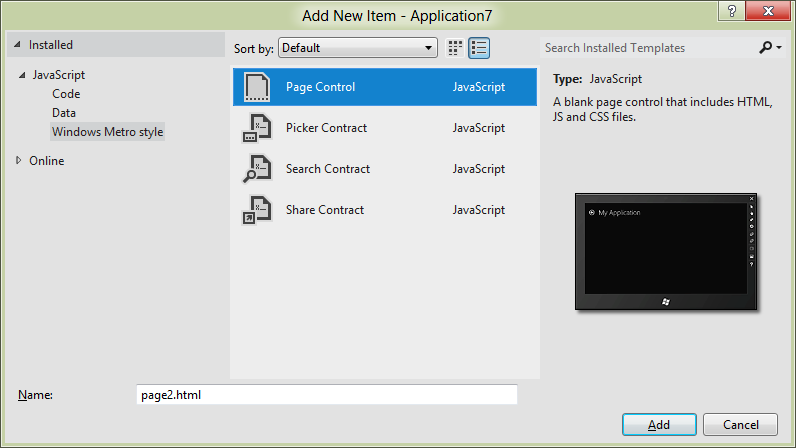
Of course, navigating to the home page is going to be rare compared to navigating between pages. The easiest way to get a new page to add to your app is to right-click on your project in the Solution Explorer and select Add | New Item:
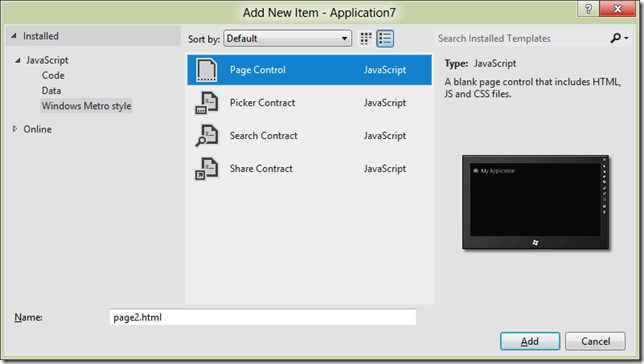
image

The last item three item templates on the list are for shell contract implementations, which are beyond the scope of this blog post, but the first one is a Page Control, which gives us a triad of HTML, JS and CSS that fits exactly into the navigation model provided by the PageControlNavigator control:

page2.html
  1. <!DOCTYPE html>
  2. <html>
  3. <head>
  4.     <meta charset=“utf-8”>
  5.     <title>page2</title>
  6.  
  7.     <!– WinJS references –>
  8.     <link href=“//Microsoft.WinJS.0.6/css/ui-dark.css” rel=“stylesheet”>
  9.     <script src=“//Microsoft.WinJS.0.6/js/base.js”></script>
  10.     <script src=“//Microsoft.WinJS.0.6/js/ui.js”></script>
  11.    
  12.     <link href=“page2.css” rel=“stylesheet”>
  13.     <script src=“page2.js”></script>
  14. </head>
  15. <body>
  16.     <div class=“page2 fragment”>
  17.         <header aria-label=“Header content” role=“banner”>
  18.             <button class=“win-backbutton” aria-label=“Back” disabled></button>
  19.             <h1 class=“titlearea win-type-ellipsis”>
  20.                 <span class=“pagetitle”>Welcome to page2</span>
  21.             </h1>
  22.         </header>
  23.         <section aria-label=“Main content” role=“main”>
  24.             <p>Content goes here.</p>
  25.         </section>
  26.     </div>
  27. </body>
  28. </html>


page2.cs
  1. .page2 p {
  2.     margin-left: 120px;
  3. }


page2.js
  1. // This function is called whenever a user navigates to this page. It
  2. // populates the page elements with the app’s data.
  3. function ready(element, options) {
  4.     // TODO: Initialize the fragment here.
  5. }
  6.  
  7. function updateLayout(element, viewState) {
  8.     // TODO: Respond to changes in viewState.
  9. }
  10.  
  11. WinJS.UI.Pages.define(/page2.html”, {
  12.     ready: ready,
  13.     updateLayout: updateLayout
  14. });

Navigating to this new control defined by these files is a simple matter of calling the navigate method:

homePage.html
  1. <a onclick=“WinJS.Navigation.navigate(‘/page2.html’)“>Page 2</a>

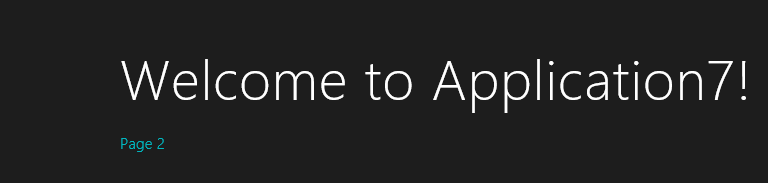
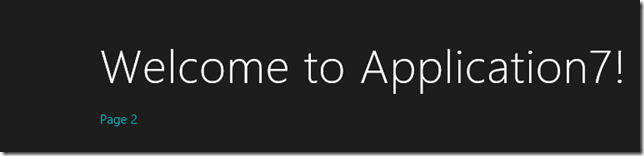
As far as the user is concerned, the anchor tag shows up as a link like any other:
image

Clicking on Page 2” fires the onclick event, which calls the navigate method, passing in the path to the HTML file and causes the Page control defined in page2.html, page2.js and page2.css to be loaded:

image 

In addition to whatever content on your Page control, notice that the Back button shows up automatically. The Back button manages navigation via clicking, touching and the browser keys; Ctrl+Left Arrow and Ctrl+Right Arrow work as Back and Forward respectively.

Grid and Split Application

At this point, we’ve covered almost all of the core concepts that make up the Grid and Split applications: they bring in WinJS by reference, they use controls and they use navigation via the Page controls. In fact, even though the Grid app has three pages and the Split app has two, they’re really just the navigation template with the pages to implement the Grid and Split app patterns that MS decided were the major app patterns appropriate for Win8. However, the Grid and Split application templates do have two major features that the other templates don’t have: support for multiple view states and a centralized data model.

Multiple view state support means that as the app is moved between portrait, landscape, full and split, the app adjusts itself to look good in all states. The view state management is mostly handled with CSS styles associated with media modes, like in the Split App’s itemsPage.css:

itemsPage.css
  1. @media screen and (-ms-view-state: snapped) {
  2.     .itemspage .itemslist .win-vertical.win-viewport .win-surface {
  3.         margin-bottom: 30px;
  4.     }

In Metro/JS apps, MS has provided a media query predicate called -ms-view-state, which can be one of the four view states and the styles in the media query block will be applied when the app moves to that state. In addition, if you want to handle the view state change in JS, you can do so with updateLayout event in your Page control, like this snippet from itemsPage.js:

itemsPage.js
  1. // This function updates the page layout in response to viewState changes.
  2. updateLayout: function (element, viewState) {
  3.     var listView = element.querySelector(″.itemslist”).winControl;
  4.     if (viewState === Windows.UI.ViewManagement.ApplicationViewState.snapped) {
  5.         listView.layout = new ui.ListLayout();
  6.     } else {
  7.         listView.layout = new ui.GridLayout();
  8.     }
  9. }

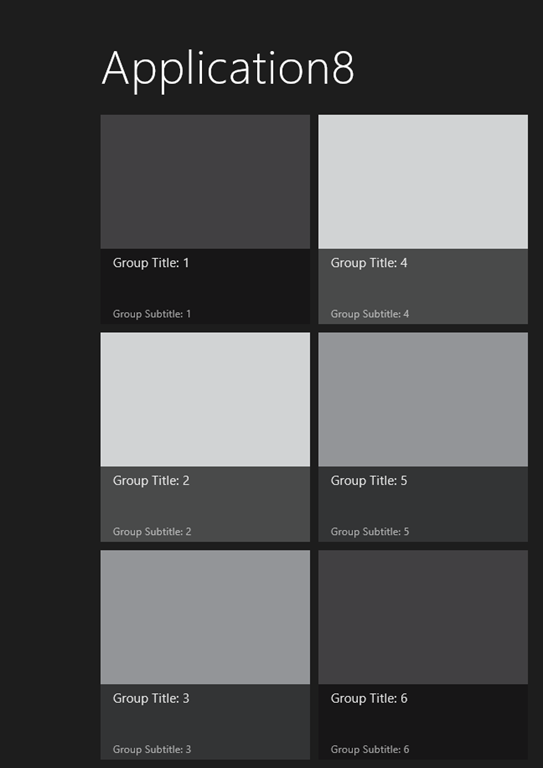
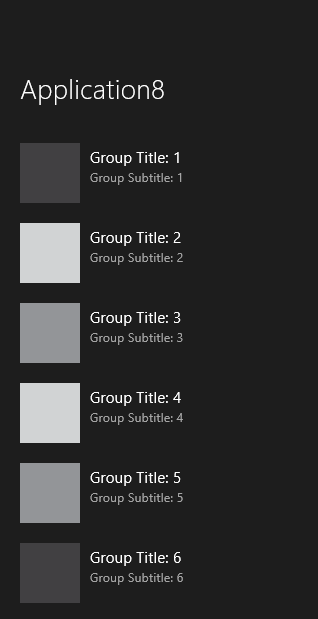
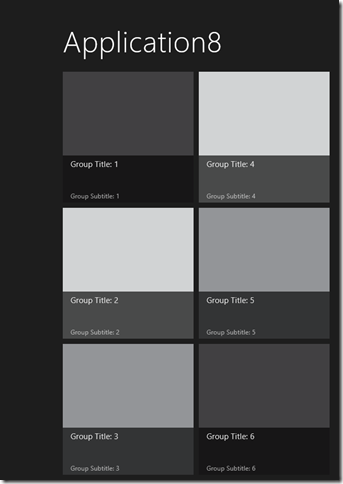
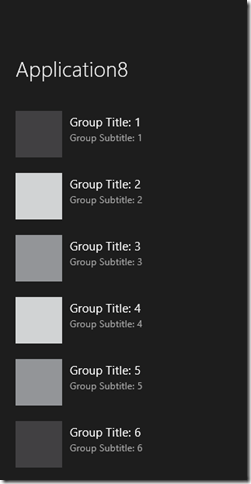
In this case, the updateLayout event is called when the control is initially created and as the app moves through the view states so it can change the layout style for the ListView control showing the contents of the page:
imageimage

Landscape vs. Snapped view state layout for the itemsPage ListView control

The other major feature of the Grid and Split app templates — and this feature is new in the Beta bits — is the centralized data model, which is where the data for all pages comes from. This data model is defined in data.js and it contains the static group and item data as you just saw. The core of the data is exposed from data.js like so:

data.js
  1. WinJS.Namespace.define(data”, {
  2.     items: groupedItems,
  3.     groups: groupedItems.groups,
  4.     getItemsFromGroup: getItemsFromGroup
  5. });

These three members of the data object are used throughout the templates, e.g. in the itemsPage.js ready event handler:

itemsPage.js
  1. // This function is called whenever a user navigates to this page. It
  2. // populates the page elements with the app’s data.
  3. ready: function (element, options) {
  4.     var listView = element.querySelector(″.itemslist”).winControl;
  5.     ui.setOptions(listView, {
  6.         itemDataSource: data.groups.dataSource,
  7.         itemTemplate: element.querySelector(″.itemtemplate”),
  8.         oniteminvoked: this.itemInvoked.bind(this),
  9.     });
  10.     this.updateLayout(element, Windows.UI.ViewManagement.ApplicationView.value);
  11. },

Notice that the data.groups property is used on line 6 to perform a data binding operation. That data binding is against the dataSource property of the object returned from data.groups, which itself is created by a method on the WinJS.Binding.List object that holds the grouped item data. It’s this binding list, a new feature in WinJS for the Beta, that makes it easy to move from the static data provided by the templates and dynamic data that your app defines.

The binding list is a binding data source, which means that as you add items to it, it notifies any control that happens to be bound to it. This is especially handy when your app starts up with zero data, but you need to initialize the ListViews such that as the data is available (perhaps from an asynchronous network call), it will be shown.

If you open up the data.js, you’ll see the static sample data:

static sample data
  1. // Each of these sample groups must have a unique key to be displayed
  2. // separately.
  3. var sampleGroups = [
  4.     { key: group1”, title: Group Title: 1”, subtitle: Group Subtitle: 1”, backgroundImage: darkGray, description: groupDescription },
  5.    
  6. ];
  7.  
  8. // Each of these sample items should have a reference to a particular
  9. // group.
  10. var sampleItems = [
  11.     { group: sampleGroups[0], title: Item Title: 1”, subtitle: Item Subtitle: 1”, description: itemDescription, content: itemContent, backgroundImage: lightGray },
  12.    
  13. ];

The group data has a unique key, a title, a subtitle, a background image and a description, which are all fields that the data templates used in the Split and Grid apps depend upon (although you can change them if you like). The item data has a reference to the group to which it belongs, a title, a subtitle, a description, a background image and the content for the item itself.

The code that populates the binding list with the sample data looks like this:

statically bound data
  1. var list = new WinJS.Binding.List();
  2. var groupedItems = list.createGrouped(groupKeySelector, groupDataSelector);
  3.  
  4. // TODO: Replace the data with your real data.
  5. // You can add data from asynchronous sources whenever it becomes available.
  6. sampleItems.forEach(function (item) {
  7.     list.push(item);
  8. });

As the comment makes clear, it’s this code you’re most likely to want to change. Instead of pulling in static data from the sampleItems array, we want to pull the items in asynchronously, perhaps from an RSS feed or two just like my earlier post:

dynamically bound data
  1. var list = new WinJS.Binding.List();
  2. var groupedItems = list.createGrouped(groupKeySelector, groupDataSelector);
  3.  
  4. // RSS feeds
  5. var feeds = [
  6.     { key: feed1”, title: Scott Hanselman”, subtitle: a blog”, backgroundImage: darkGray, description: a blog”, url: http://feeds.feedburner.com/ScottHanselman” },
  7.  
  8.     { key: feed2”, title: Raymond Chen”, subtitle: a blog”, backgroundImage: lightGray, description: a blog”, url: http://blogs.msdn.com/b/oldnewthing/rss.aspx” },
  9.  
  10.     { key: feed3”, title: Chris Sells”, subtitle: a blog”, backgroundImage: mediumGray, description: a blog”, url: http://sellsbrothers.com/posts/?format=rss” },
  11. ];
  12.  
  13. feeds.forEach(function (feed) {
  14.     WinJS.xhr({ url: feed.url }).then(function (request) { processPosts(feed, request); });
  15. });
  16.  
  17. function processPosts(feed, request) {
  18.     // parse the RSS
  19.     var nodes = request.responseXML.selectNodes(//item”);
  20.     for (var i = 0, len = nodes.length; i < len; i++) {
  21.         var node = nodes[i];
  22.         var item = {
  23.             group: feed,
  24.             title: node.selectNodes(title”)[0].text,
  25.             subtitle: node.selectNodes(pubDate”)[0].text,
  26.             description: a post”,
  27.             content: node.selectNodes(description”)[0].text,
  28.             backgroundImage: feed.backgroundImage
  29.         };
  30.         list.push(item);
  31.     }
  32. }

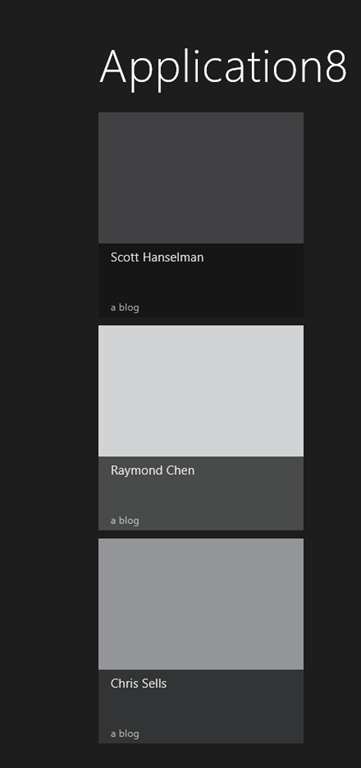
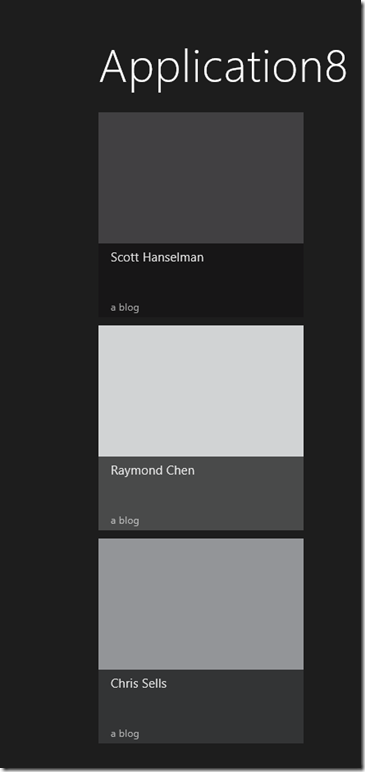
In this case, our group data is a set of RSS feeds, being careful to continue to use the same group field names so I don’t have to update the data templates in the rest of the app. When the app loads, I still create a binding list, but instead of filling it directly, I start an async xhr call (the WinJS XMLHttpRequest wrapper) for each feed, creating an item for each RSS post I find upon a successful completion. Because I’ve left the data model alone and because I’m using the binding list, that’s all I have to change and now the entire app has been updated to support that data:
image

The items page with the set of feeds in the Split app template
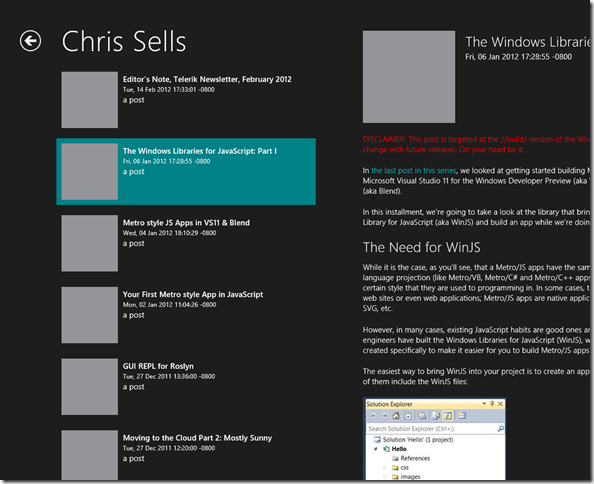
image

The split page with the posts from the selected feed

Where Are We?

As you can see, the Metro/JS templates in the VS11 beta start simple and add features with navigation, pages with specific app pattern functionality, multiple view state support and a unified data model. The main difference is the Beta versions of this templates is that code has been simplified, beautified and pushed into WinJS as much as possible to make the inside of your app just as pretty and easy to use as the outside.

Translation

This article has been translated into Serbo-Croatian by Jovana Milutinovich. Enjoy.


← Newer Entries Older Entries →